Files, previews and the terminal
Browse the workspace, open a file in Preview, save a copy to your phone, and run a shell.
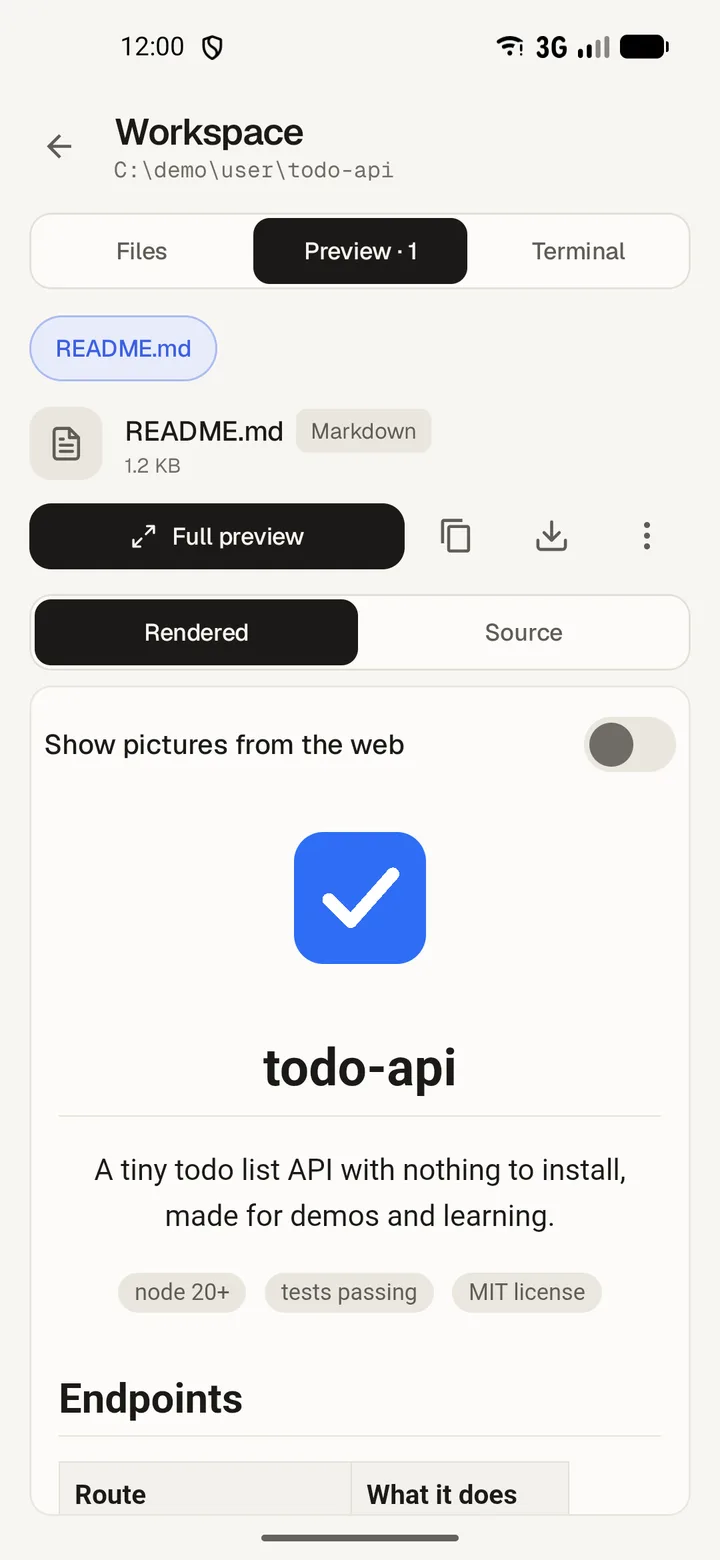
Browse the workspace
- Open Files.
- Tap a folder to open it, or Parent folder to go up.
- Tap a file to open it in Preview.
If a folder holds more entries than the app listed, it says This listing is incomplete.
Preview a file
- CSV opens as a Table, JSON as a Tree.
- Notebooks, PDFs, pictures, video and audio open in place.
- Archives list what they contain.
- Tap Find in file to search the text.
A file too large to draw still offers Save a copy.
Save a copy to your phone
- Open the file in Preview.
- Tap Save a copy.
- The app saves the file and says Saved to your device.
Terminal
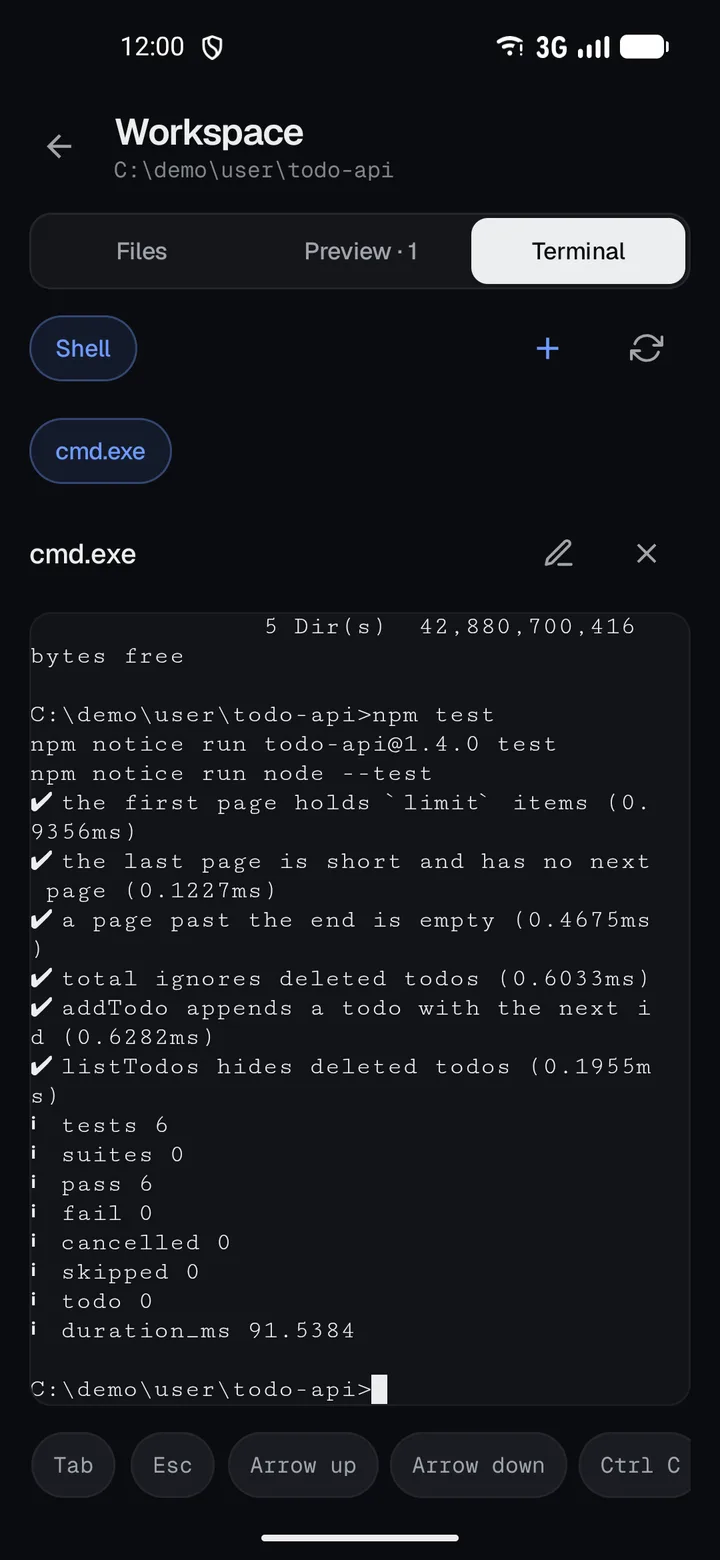
- Open Terminal.
- Tap New terminal.
- Type a command and send it with Send Enter.
The shell runs on the harness computer, not on the phone.