Fix a connection that fails
Match the message the app shows to its cause, then follow the steps that fix it.
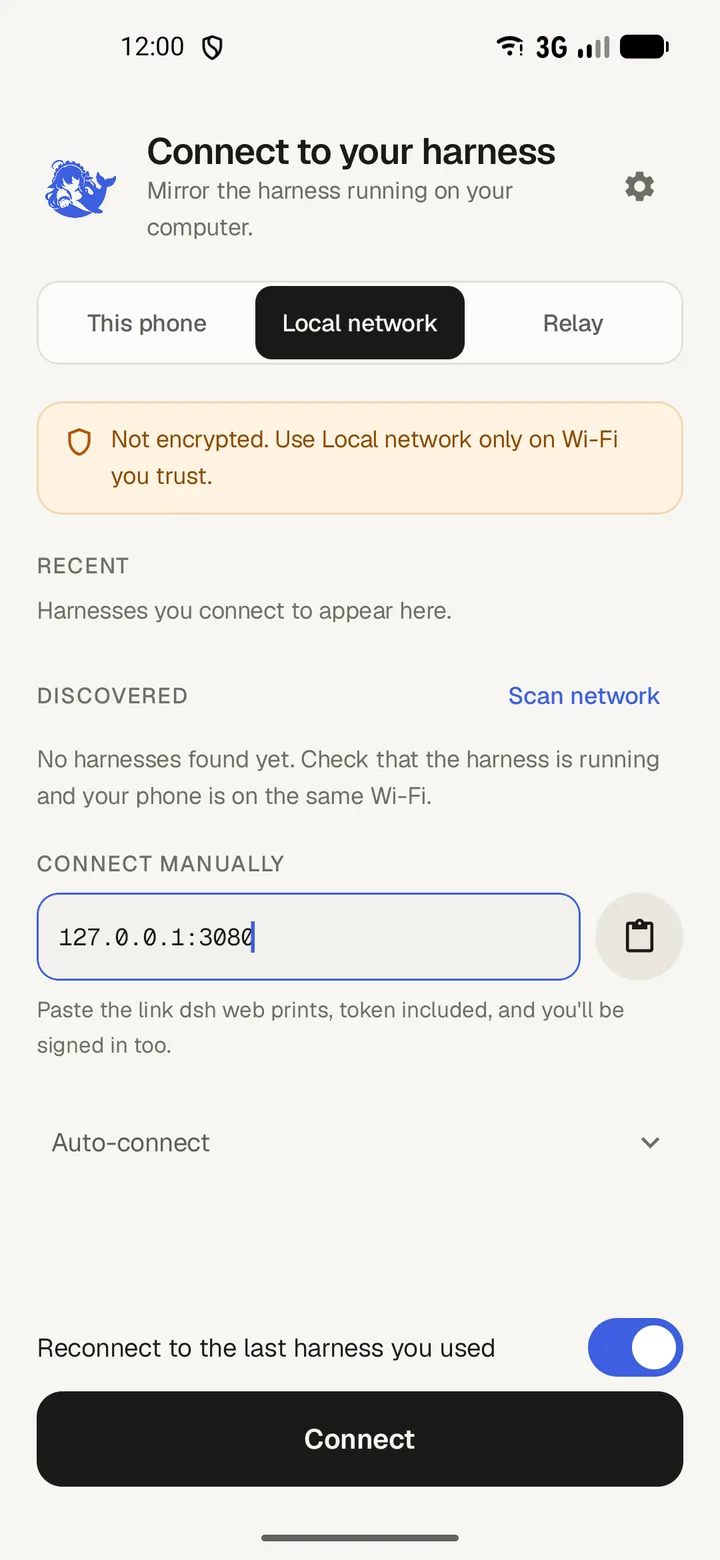
Almost every fix is on the computer. The phone is the device that reports the problem.
Cannot reach the harness
Two messages belong here. Nothing answered at … means the packets were dropped. … refused the connection means the port has no listener.
- Allow port 3080 through the computer's firewall, for the Private and Domain profiles.
- Start the harness on its network address with
dsh web --host …, then restart it. - Check the router for client isolation, which guest networks turn on.
Connect over Wi-Fi has the whole setup.
The address was refused
The harness refused this address means the harness answered and does not trust the name you used.
- Connect with the computer's IP address instead of its name.
- Or start the harness with
dsh web --trusted-host …and restart it.
A scan lists a harness in this state as Not trusted rather than hiding it.
Wrong network
… isn't on this phone's network. This phone is on … means the two devices are on different subnets, so nothing on the phone can route there.
- Join both devices to the same router network. Guest and IoT Wi-Fi are usually kept separate.
- Compare the addresses:
ipconfigon Windows,ip addron Linux,ifconfigon macOS. - If a name does not resolve, the app says Nothing on this network answers to “…”. Use the IP address instead.
Something that is not a harness
Something answered at …, but it isn't a DeepSeek Harness. Something else holds that port.
- Use the port the harness printed when it started.
- Check the port in the app matches it, then try again.
Sign-in failed
… is a harness, but it hasn't signed this phone in. The address is right and the token is missing or stale.
- Paste the whole startup link, token included.
- If the harness restarted, take the new link: The harness didn't accept that token. It changes on every restart, so check the latest startup line.
Streams closed
… answered, but its event stream wouldn't open. The calls work and the WebSocket does not.
- Turn off a VPN or private DNS on the phone, then retry.
- Turn off an HTTP proxy, if one is set.
- Force-stop the app and open it again.
Relay pairing failed
The relay refused that code. Each code works once and expires after a few minutes. The relay read the code and rejected it.
- Reload
/relay/pairon the computer and use the new code. - If the app says The relay refused this device, pair again: the token expired or was removed from the device list.
- If a scan says Refuses this address, add that address to
publicHostnamesin the relay'scordis.patch.yml, then restart the relay.
Connect from outside your home network covers pairing.