Appearance and language
Pick a theme, an accent colour and a text size, then choose the language you read.
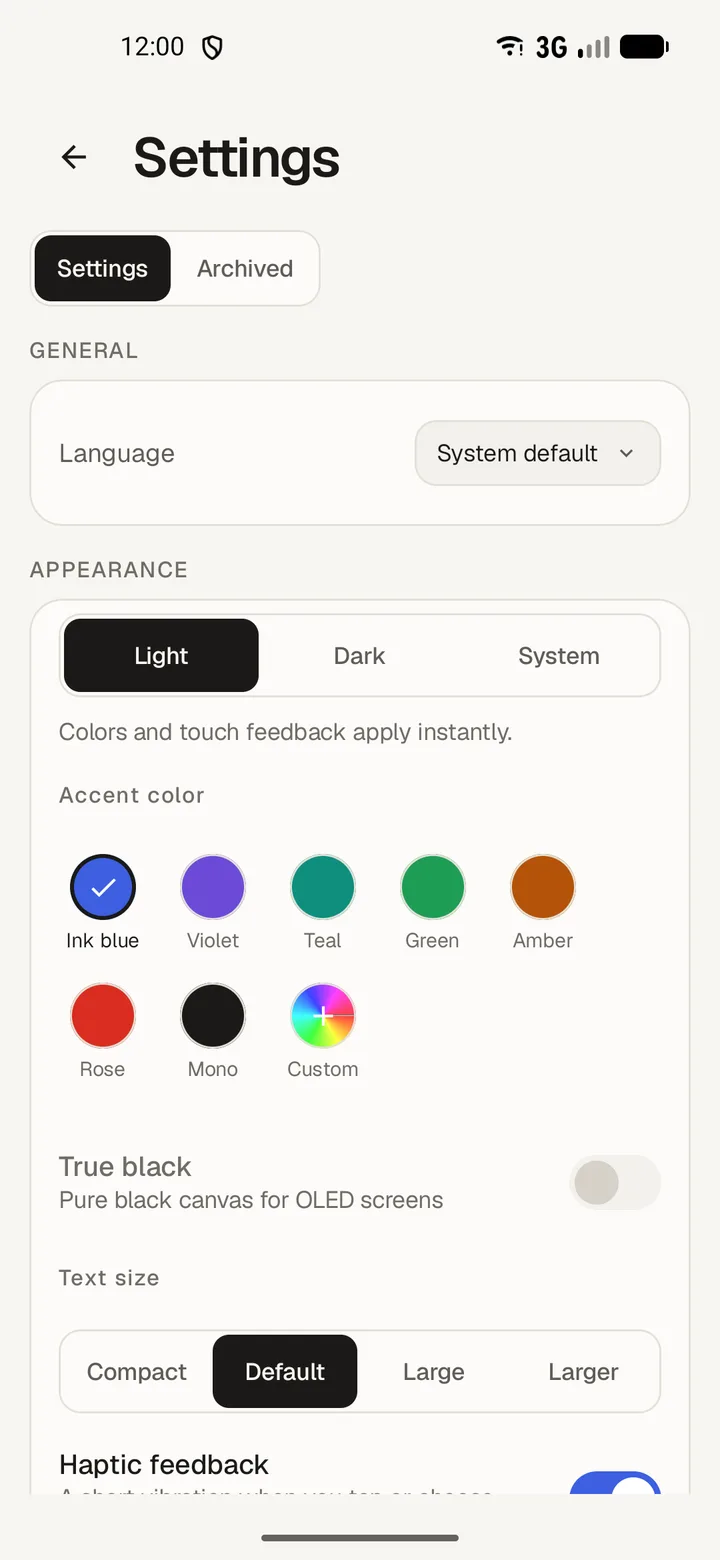
Theme
- Open Settings and tap Appearance.
- Choose Light, Dark or System.
- On an OLED screen, turn on True black for a pure black canvas.

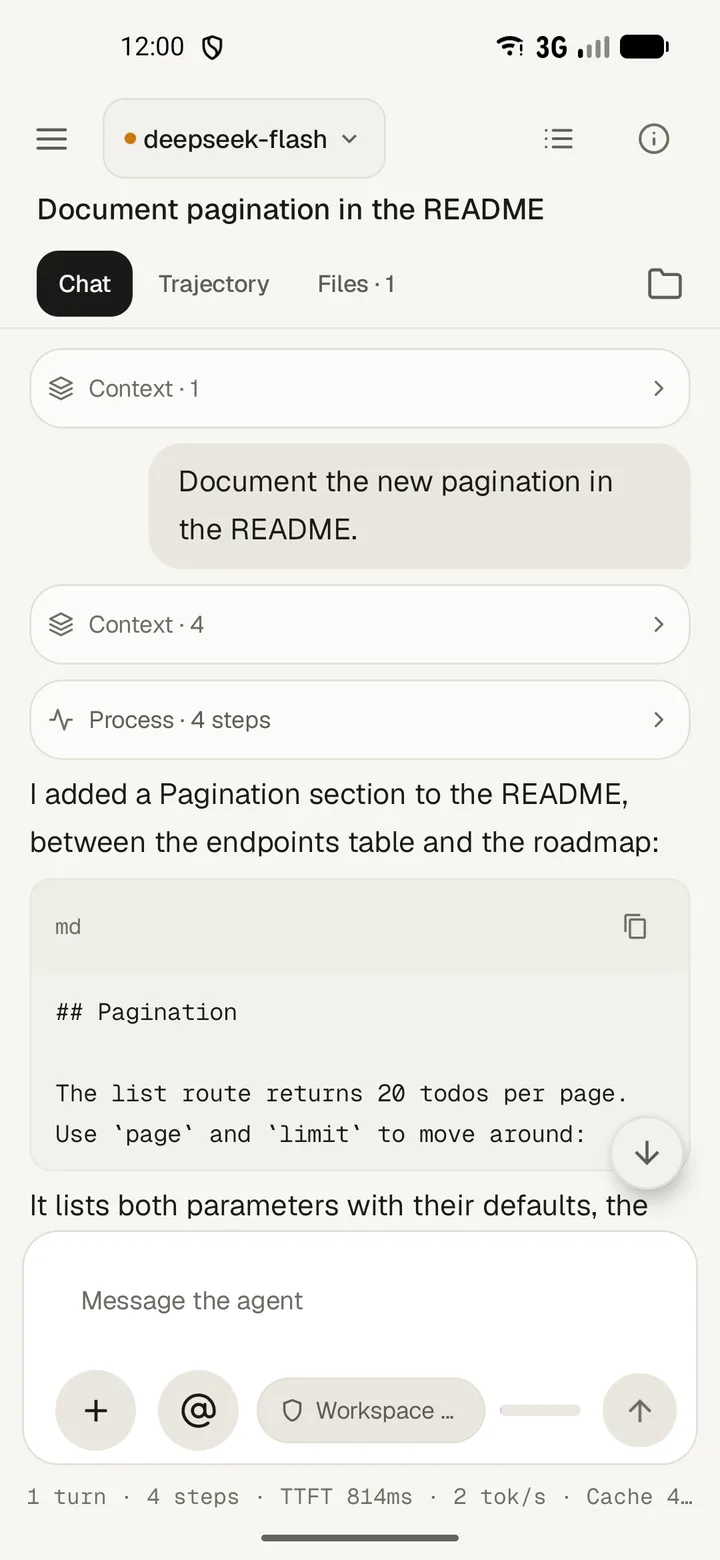
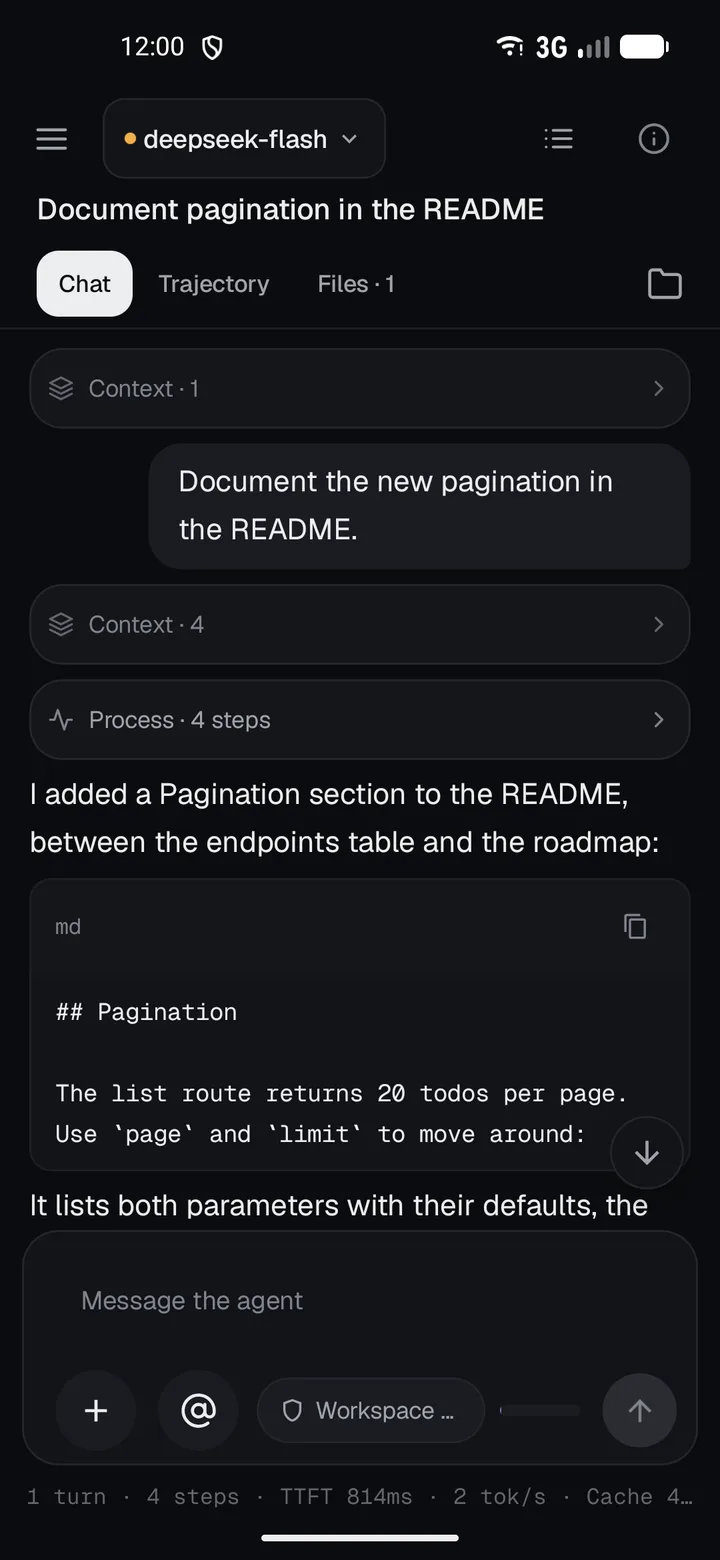
Accent colour
- Tap Ink blue, Violet, Teal, Green, Amber, Rose or Mono.
- Tap Custom to pick your own with the hue strip and the colour area, or to type a hex value.
- Tap Apply. Its lightness is adjusted in each theme so text stays readable.
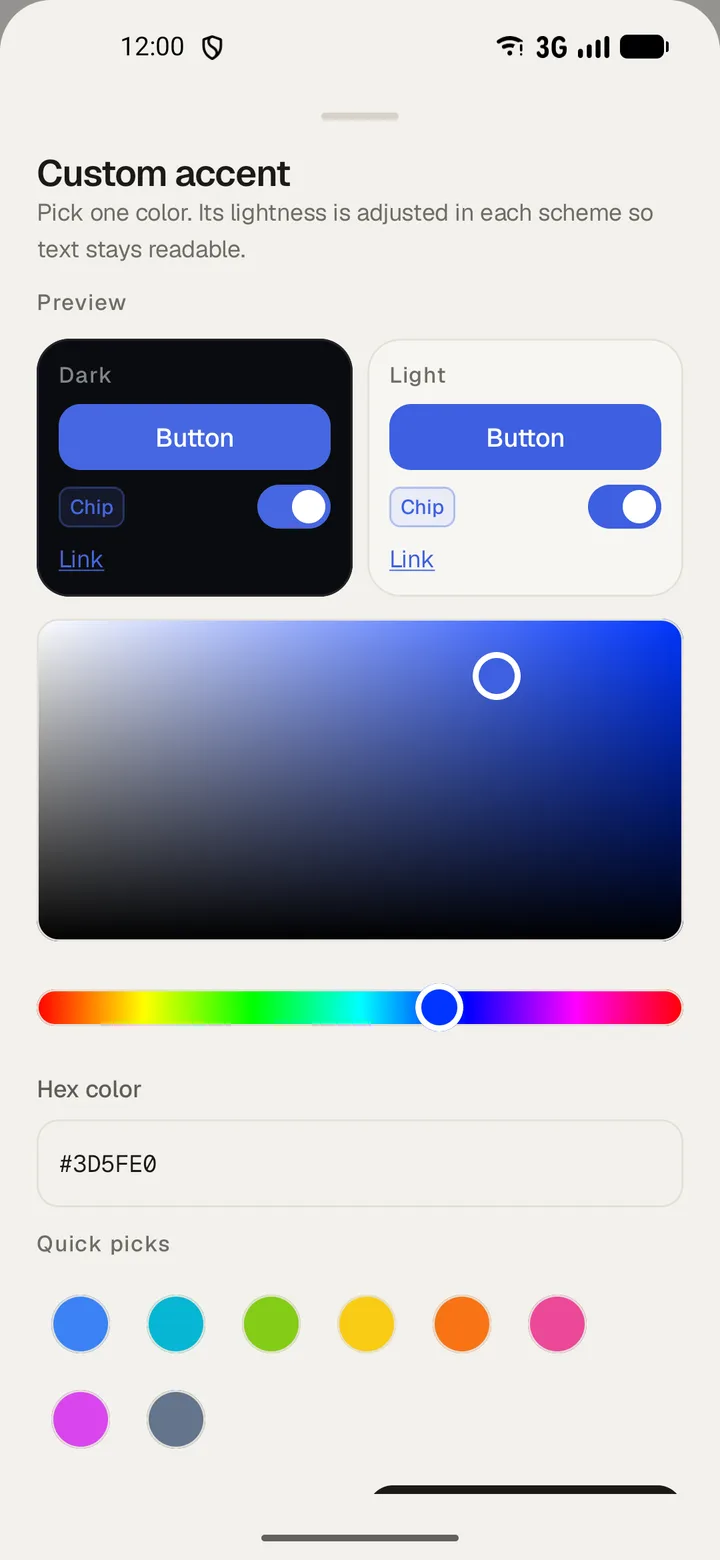
The picker shows a small Preview with a button, a chip and a link, plus a row of quick picks.
Text and touch
- Pick a Text size: Compact, Default, Large or Larger.
- Turn on Haptic feedback for a short vibration when you tap or choose something.
- Set its Strength to Light, Normal or Strong, then tap Try it to feel each effect on its sample buttons.
Reset appearance returns every setting on this screen to its default.
Language
- Open Settings and tap Language.
- Choose from eleven languages, or leave System default.
- Arabic and Urdu lay the whole app out from right to left.